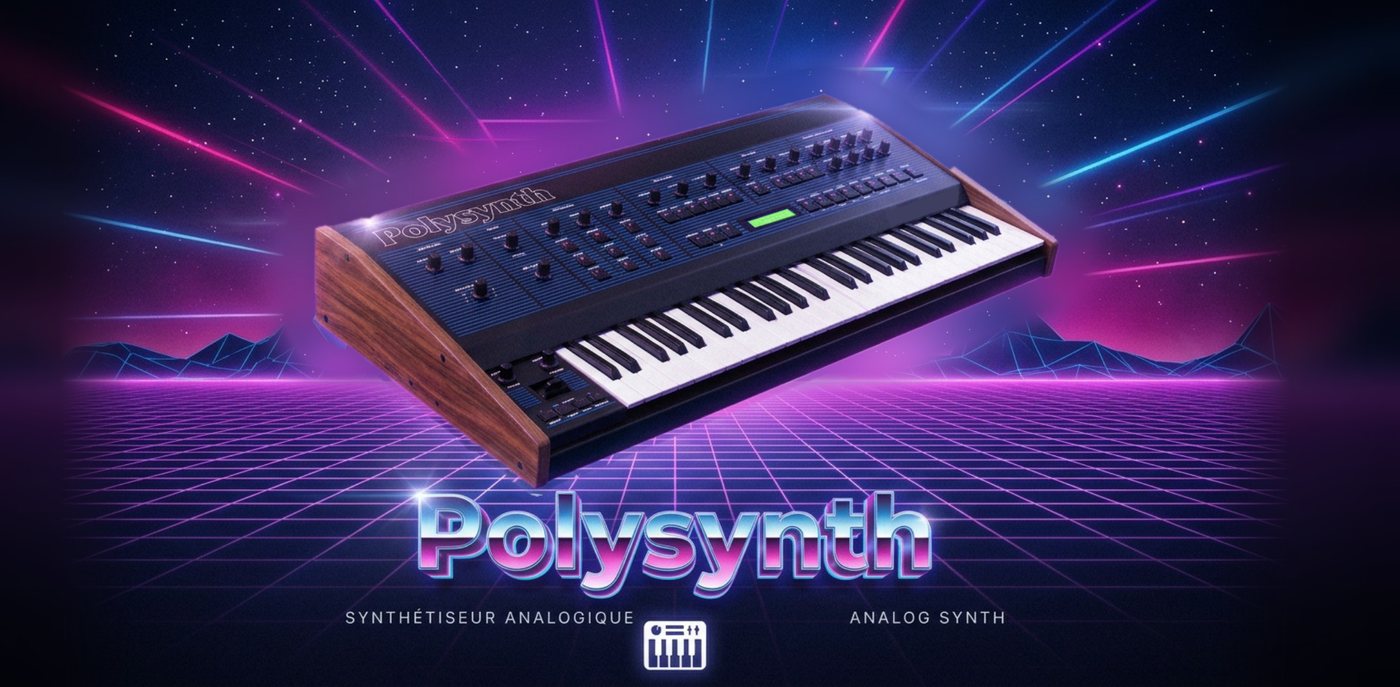
A 12-voice polyphonic synthesizer inspired by the great analog polys of the early 80s, with a real front panel of knobs, 16 multitimbral parts, a 16-track sequencer, a drum machine and an AI assistant that programs a sound or writes a whole song from one sentence. The same audio engine on iPhone, iPad and Android.
COMING SOON TO THE APP STORE AND GOOGLE PLAYfree: synth, 16-part Multi, sequencer, drum machine · Premium as a one-time purchase, no subscription
A native C++ audio engine shared by both platforms (Oboe on Android, Core Audio on iOS), and a front panel like a real instrument: knobs, LEDs, selectors, red display, wooden end cheeks.
12
12-voice polyphony
POLY, UNISON (all voices stacked and detuned) and MONO with portamento. The voice count is adjustable from 1 to 12.
VCO
Two oscillators + noise
Sawtooth, variable-width pulse or triangle, octave, semitones, detune in cents, hard sync and cross modulation (X-MOD). OSC 1, OSC 2 and noise mixer.
VCF
12 or 24 dB filter
Resonant low-pass filter from 20 Hz to 18 kHz, 12 or 24 dB/octave slope, positive or negative envelope, keyboard and velocity tracking.
ENV
Two envelopes
Filter ADSR and amp ADSR (1 ms to 10 s). The filter envelope can also bend the pitch of both oscillators or OSC 2 alone (sync sweeps).
LFO
LFO and wheels
Sine, triangle, sawtooth, square, S&H from 0.05 to 30 Hz, to pitch, filter and pulse width. Adjustable MOD wheel depth, pitch bend from ±1 to ±12 semitones.
ARP
Arpeggiator
UP, DOWN, UP/DN, RAND, PLAYED, 1 to 4 octaves, quarter notes to 32nds (with triplets), gate, latch, tempo 40 to 240 BPM or MIDI clock.
16
16-part Multi
Sixteen sounds at once, each with its own level, pan, mute / solo, transpose and MIDI channel. The MULTI screen shows them side by side like a mixing desk.
SPL
Split: two sounds
The keyboard splits into two zones that play two of the 16 parts, each with its own sound and arpeggiator; split point, lower zone transpose, balance.
FX
Chorus, delay, reverb
Stereo chorus, delay up to 1.5 s with feedback and tone, reverb from 0.3 to 12 s with pre-delay and damping.
88
88 factory sounds
Four banks: FACTORY, VINTAGE (32 sounds in the spirit of a 1980 8-voice poly), MODERN (32 sounds) and DRUMS, plus your sounds and performances in the USER bank. Free: the first 5 sounds of each bank.
DR
Drum machine
Three synthesized kits (ANALOG, ELECTRO, 8-BIT), the URBAN sample kit and a USER kit with your own sounds (Premium). Eight mixer channels with mute, solo and fader, 24 pads.
SEQ
Pattern sequencer
16 patterns of 1 to 8 bars, quantized loop recording with metronome, 16-step editing, swing, erase by pad.
DAW
16-track sequencer
One track per part: regions to move and stretch, cycle, recording while playing, piano roll and guitar / bass tabs, quantize (grid, strength, swing, triplets), undo / redo.
♪
Songs
A song keeps everything: sounds and mix of the 16 parts, tempo and notes. Library on the device, export and import of .psong files between iPhone and Android (Premium).
AI
AI assistant PREMIUM
Describe a sound in writing or by voice and PolySynth programs it. Offline, on-device AI (no key, no Internet), or Claude, OpenAI, Gemini with your own key.
♫
A song from one sentence PREMIUM
"Laid-back dub in A minor": the AI writes drums, bass, chords, pad, arpeggio and melody in 13 styles, picks the sounds and starts playback. Everything stays editable in the sequencer.
MIDI
MIDI
USB and Bluetooth keyboards, other apps. OMNI mode (the MIDI keyboard plays the selected part) or MULTI (each part on its channel, to drive all 16 sounds from an external sequencer). Clock and Start/Stop.
◐
Three looks
STUDIO (hardware grey, red display), NEON (fluorescent orange and lime green), VINTAGE (black, cream headers, chrome knobs).
⌨
KEYS mode
Hide the keyboard: every section shows at once, ideal on a tablet or when playing from a MIDI keyboard.
ms
Low latency
Minimal audio buffer to play without lag; the output latency is shown under the logo.
On iPhone: the same front panel and the same sound engine.The drum machine playing: pads, mixer, sequencer and 16-step row.
User manual
The PolySynth manual
Every screen, every button, every parameter. Screenshots come from the Android version; the iOS version is identical. Tap a screenshot to enlarge it.
The opening: the synth grows into place with a chime. Tap the screen to skip.
PolySynth is used in landscape. At launch the opening animation plays, then the front panel appears with the sounds and settings of your last session (the 16 parts, the mix and the sequencer song included).
Play the on-screen keyboard with several fingers, or plug in a MIDI keyboard.
Change sound with ‹› on either side of the display, or tap the display to pick a bank and then a sound.
Turn the knobs to shape the sound, then SAVE to store it in the USER bank.
The SYNTH ▾ button opens the other screens: MULTI (the 16 parts), SEQ (sequencer), DRUMS (drum machine) and IA (AI assistant).
The P01 button chooses which of the 16 parts you play and edit.
A stuck note? PANIC stops every note at once.
2The top bar
Item
Role
Logo and MIDI line
Under the logo: MIDI status (MIDI ○ no device, MIDI ● 1 one device connected), tempo measured from incoming MIDI clock (CLK 120.0) or NO CLK when the arpeggiator waits for a clock that does not arrive, then the audio output latency in milliseconds.
⚙
Opens the Settings menu: Premium and theme choice.
✦ IA
Opens the AI assistant (and goes back to the synth). See the AI assistant chapter.
SPLIT
Splits the keyboard into two parts. Long press: pick the split point by touching a key. See the Split chapter.
P01 … P16
The part played by the keyboard and edited by the front panel, the preset browser and SAVE. Tap it to pick one of the 16 parts. With the split on it becomes U·P01 / L·P02 and switches between the two zones.
Display
Bank and sound name of the edited part. The name scrolls every 5 seconds. While sound is playing, an oscilloscope replaces the name. Tap the display to open the list of banks.
‹›
Previous / next sound, across all banks (Premium sounds are skipped in the free version).
SAVE
Stores the sound in the USER bank under the chosen name; with the split on, stores the whole performance (both sounds and the split settings).
PANIC
Stops all notes.
KEYS ▾ / KEYS ▴
Hides or shows the keyboard (KEYS mode). In the sequencer the keyboard is hidden by default and this button shows it.
SYNTH ▾
Screen choice: SYNTH (front panel), MULTI (16 parts), SEQ (16-track sequencer), DRUMS (drum machine), IA (AI assistant). The button shows the current screen.
OCT −OCT +
Shifts the keyboard by one octave; the first note (C3…) is shown between them.
3Controls and keyboard
Knobs
Drag up to increase, down to decrease. A second finger on the screen makes the adjustment five times finer.
Double tap: back to the default value.
While turning, the exact value (Hz, ms, cents, %, semitones…) replaces the knob name.
Bipolar parameters (filter envelope, pitch envelope, balance) start from the centre.
A horizontal swipe scrolls the front panel: the sections continue to the right (filter, envelopes, arpeggiator, effects, split, master).
Selectors and buttons
LED selector (WAVE, MODE, SLOPE…): tap the option you want.
Display selector (LFO shape, arpeggiator rate, kit…): tap the left half for the previous option, the right half for the next.
ON, SYNC, LATCH… buttons: one press turns on or off; the LED shows the state.
Keyboard and wheels
Multi-touch keyboard with glissando: slide a finger from key to key. The lower on the key you play (towards you), the louder the note.
The number of keys follows the screen width; C keys carry their octave label (C3, C4…).
PITCH: pitch bend, springs back to the centre when released (range set by BEND in VOICE). MOD: modulation wheel, adds vibrato from the LFO (amount set by WHEEL).
4Oscillators and mixer
Section
Parameters
OSC 1
WAVE SAW (sawtooth), PULSE, TRI (triangle). OCT −2 to +2 octaves. PW pulse width of the PULSE wave (5 to 95 %).
OSC 2
WAVE, OCT, SEMI ±12 semitones, DETUNE ±50 cents (a slight detune thickens the sound), PW, SYNC (OSC 2 restarts with OSC 1: aggressive tones, especially when sweeping OSC 2 pitch), X-MOD (OSC 1 modulates OSC 2 frequency: metallic sounds and bells).
MIXER
Levels of OSC 1, OSC 2 and NOISE (white noise, for breath and percussion).
5Filter and envelopes
The front panel scrolled to the right: filter, envelopes, arpeggiator, chorus and delay.
Section
Parameters
FILTER
CUTOFF cutoff frequency, 20 Hz to 18 kHz. RESO resonance. SLOPE 12 dB (softer, typical of 1980 polys) or 24 dB/octave. ENV envelope amount, positive (opens) or negative (closes). KEY keyboard tracking (higher notes brighter). VEL velocity opens the filter.
FILTER ENV
A, D, S, R: attack, decay, sustain, release of the filter envelope (1 ms to 10 s). PITCH: the same envelope bends the pitch (up to ±48 semitones), TO picks the target: 1+2 (both oscillators) or OSC 2 (with SYNC, the classic sync-lead sweep).
AMP ENV
A, D, S, R of the volume envelope, VEL volume sensitivity to velocity.
For brass: slightly slow filter attack (A around 0.5), positive ENV, medium sustain. For a snappy bass: A at 0, short D, low S, RESO a bit high.
6LFO and voice
Section
Parameters
LFO
WAVE SINE, TRI, SAW, SQR, S&H (random steps). RATE 0.05 to 30 Hz. PITCH vibrato. FILTER wah, wobble. PWM varies the pulse width (animated strings). WHEEL amount of vibrato added by the MOD wheel.
VOICE
MODE POLY, UNISON (all voices on the same note, detuned: huge leads and basses), MONO (one voice, last-note priority). VOICES polyphony 1 to 12. DETUNE unison detune. GLIDE portamento (2 ms to 2 s, OFF at zero). VINTAGE small tuning and filter differences between voices, like a real analog. SPREAD stereo spread of the voices. BEND pitch-bend range, ±1 to ±12 semitones. KIT replaces the sound with a drum kit across the keyboard (see Drum machine).
7Arpeggiator
ARPEGGIATOR section: hold a chord and the arpeggiator plays its notes one at a time.
Setting
Role
ON
Turns the arpeggiator on.
MODE
UP, DOWN, UP/DN (up and down), RAND (random), PLAYED (in the order you played the notes).
The arpeggio keeps playing after you release the keys; a new chord replaces it.
TEMPO
40 to 240 BPM (shared with the drum sequencer).
CLOCK
INT: internal tempo. MIDI: follows incoming MIDI clock (arpeggiator and sequencer). With no clock, the MIDI line shows NO CLK.
With the split on, each part has its own arpeggiator: an arpeggiated bass on the left under held chords on the right, for example.
8Effects
End of the front panel: reverb, split and master volume.
Effect
Settings
CHORUS
ON, RATE 0.1 to 5 Hz, DEPTH, MIX. Thickens and widens the sound (pads, strings).
DELAY
ON, TIME 20 ms to 1.5 s, FDBK number of repeats, TONE dark or bright repeats, MIX.
REVERB
ON, DECAY 0.3 to 12 s, PRE pre-delay 0 to 150 ms, DAMP high-frequency damping, MIX.
MASTER
Overall VOLUME.
The effects are shared by the 16 parts and the drum machine.
9Split: two sounds on the keyboard
Split on C4: the LOWER part is tinted blue, a line marks the split point.
Tap SPLIT: it turns blue. Keys below the split point (C4 by default) play the LOWER zone (part P02 by default), the others the UPPER zone (P01).
Long press SPLIT then touch a key: it becomes the first note of the UPPER part.
The part button (U·P01 / L·P02) chooses the zone you edit: the front panel shows its settings, ‹ › and the preset browser change its sound.
SPLIT section of the front panel: ON, POINT (split note), LOW OCT (transposes the lower part by ±2 octaves), BAL (balance between the zones), UP and LOW (the part, P01 to P16, played by each zone).
Effects, tempo and volume are shared; everything else (oscillators, filter, envelopes, LFO, voice, arpeggiator) belongs to each part.
SAVE with the split on stores a performance: both sounds and the split settings. It appears in the USER bank marked SPLIT.
LOWER zone selected: the front panel shows its sound's settings; the lower part of the keyboard is tinted blue.
1016-part Multi
The MULTI screen: one strip per part; the edited part is framed in its colour.
PolySynth plays 16 sounds at once. Each part has its own sound (oscillators, filter, envelopes, LFO, voice, arpeggiator); effects, tempo and master volume are shared. Open the screen with SYNTH ▾ › MULTI.
Strip element
Role
P01 ch1
Part number and its MIDI channel. Tap it to make it the part played by the keyboard and edited by the front panel.
Sound name
Tap it to pick another sound for this part from the banks.
MS
Mute and solo. As soon as one part is soloed, only soloed parts play.
Fader
Part level (double tap: default level).
PAN
Stereo position, from L100 to R100.
CH
MIDI channel listened to in MULTI mode (part n listens to channel n by default).
TRANS
Transpose by ±24 semitones.
On the right, MIDI MODE sets how a MIDI keyboard or app plays PolySynth: OMNI (everything goes to the selected part, like the on-screen keyboard) or MULTI (each part listens to its channel). MASTER sets the overall volume.
The drum machine plays on part P10 (channel 10, as in General MIDI). The level, mute and solo of P10 therefore apply to the whole drum kit.
11Presets and banks
Tap the display: the list of banks.Then the sound you want in the bank.
8 settings for the drum machine: each kit with its reverb or echo, plus the URBAN sample kit (Premium).
USER
Your sounds and performances saved with SAVE, in alphabetical order.
The current sound is marked with a dot in the lists.
Saving under an existing name replaces that sound.
On iOS, swipe a USER sound to the left in the list to delete it.
Free version: the first 5 sounds of each factory bank (the others carry a padlock 🔒) and one USER slot (save under the same name to replace it).
12Drum machine
The DRUMS screen: eight mixer channels with their pads, the settings column on the right, the step row at the bottom.
SYNTH ▾ › DRUMS. The drum machine plays on part P10; if that part has no kit, the 8-BIT kit is selected. When you go back to the synth you find the part you were editing.
The kit's cymbal (crash, sweep or ride), three tunings.
PERC 1 / PERC 2
The kit's percussion (shaker, tick, tambourine, bell…), rimshot and clap.
Each channel has M (mute), S (solo) and a fader (double tap: default level). These settings are kept between sessions.
Pads fire as soon as you touch them and accept several fingers. With VELOCITY (KIT section), hitting low on the pad plays louder.
The keyboard plays the kit too: on the synth screen, set KIT (VOICE section) to a kit and the sound names appear on the keys.
Right column
The column scrolls: EDIT, KIT, DELAY, REVERB, MASTER.
Section
Settings
SEQUENCER
PLAY, REC, PATTERN P01 to P16.
GROOVE
TEMPO, SWING (50 % straight to 75 %), QUANT recording quantize: 1/8, 1/8T, 1/16, 1/16T, 1/32 or OFF.
PATTERN
LENGTH 1, 2, 4 or 8 bars, CLOCK INT or MIDI, METRO metronome while recording.
EDIT
ERASE: then tap a pad to erase all its notes from the pattern. CLEAR: long press to empty the pattern.
KIT
SOUND ANALOG, ELECTRO, 8-BIT, USER or URBAN, URBAN KIT (sample kit, one sound per pad), VELOCITY, LOAD (see USER kit). URBAN and USER are part of Premium.
DELAY · REVERB · MASTER
The same effects and volume as on the synth screen.
13Drum patterns
Record while playing
Choose a PATTERN, its LENGTH and the quantize (QUANT).
Tap REC: playback starts from the top of the pattern and the metronome clicks (if METRO is on).
Play the pads (or the keyboard with a kit): hits snap to the grid and add up on every pass of the loop.
Tap REC to stop recording and keep playing, or PLAY to stop everything.
Step editing
The bottom row shows the 16 steps (sixteenth notes) of one bar for the last pad touched, whose name is shown on the left.
Tap a step to add or remove the hit.
Tap ‹ or › next to “BAR 1/2” to change bar.
During playback, a white frame follows the current step.
Changing pattern during playback: the new one starts at the end of the current pattern, without a gap.
The 16 patterns are saved automatically.
With CLOCK set to MIDI, the sequencer follows the clock and the Start / Continue / Stop commands of a MIDI device. Start / Stop drive the patterns when the DRUMS screen was opened last, the 16-track sequencer when SEQ was.
14USER kit: your own sounds PREMIUM
On the DRUMS screen, turn on LOAD (KIT section).
Tap the pad whose sound you want to replace: the file picker opens.
Choose an audio file (12 seconds at most). The kit switches to USER and the file name appears on the pad and the keys.
Turn LOAD off to play normally again.
Formats: WAV (8 to 32-bit PCM or float) on Android; WAV, AIFF, CAF, MP3, M4A on iOS. The sound is mixed to mono.
A sound is shared by the pads that use it (for example the three BASS pads play the same sample at three pitches).
Sounds you have not replaced keep those of the 8-BIT kit.
Files are copied into the app and reloaded at every launch.
Only use sounds you have the right to use.
1516-track sequencer
The arrangement: one track per part, regions with a preview of their notes, the cycle in yellow on the ruler.
SYNTH ▾ › SEQ. Each track plays the part with the same number (track 1 = P01…), with its sound and mix. The current song is saved automatically.
Transport bar
Button
Role
PISTE
Shows or hides the track inspector on the left.
▶ / ■
Play / stop.
●
Record on the selected track (see below).
⟲ CYCLE
Loop playback over the yellow zone of the ruler.
Display
Position (bar.beat.sixteenth) and tempo. Tap it to type the tempo.
Q 1/16
Quantizes the selected note, otherwise the open or selected region. Long press or Q…: quantize settings.
↶↷
Undo / redo (50 steps).
DUPLSUPPR
Copies the selected region right after it / deletes it.
MIXER
Opens the MULTI screen.
MORCEAUXNOUVEAU
Song library / clears every region (↶ undoes it).
Tracks and regions
Ruler: drag on it to set the cycle (in whole bars).
Track header: tap it to select the track (it becomes the part played by the keyboard); M and S for mute and solo. Drag it vertically to scroll the tracks.
Tap an empty lane: a one-bar region is created there.
Tap a region to select it, double tap to open it in the editor. Drag it to move it (whole bars, or to another track); drag its right edge to lengthen it.
Elsewhere, dragging scrolls the arrangement. During playback the view follows the playhead.
Track inspector
PISTE shows on the left: Edit the sound (opens the front panel on this part), Piano roll, Mixer, level, pan, MUTE / SOLO and the track colour (16 colours).
Record while playing
Select the track, set the cycle and show the keyboard with KEYS ▴ (or play a MIDI keyboard).
Tap ●: playback starts; notes go into the region covering the cycle (created if needed) and add up on every pass.
Tap ● or ■ to stop. With "Quantize while recording", notes snap to the grid as they arrive.
Editor: piano roll and tabs
The piano roll below the arrangement, with the settings bar of the selected note.
PIANO: tap an empty cell to add a note (on the quantize grid), tap a note to select and hear it, drag it to move it, drag its right edge for the length. Tap the keyboard on the left to hear a note.
TAB GTR / TAB BASS: the same notes as a 6- or 4-string tab. Tap a string to add an open-string note, drag a note vertically to change fret, horizontally to move it in time.
−OCT+OCT transpose the whole region; FERMER closes the editor.
Selected note: its pitch and position, its length (−+ or directly 1/32 to 2 bars), → TOUTES (same length for the whole region), velocity, Q NOTE, SUPPR.
With no note selected: Q RÉGION, Q PISTE and the quantize settings.
Quantize
Setting
Role
Grid
1/4, 1/8, 1/8T, 1/16, 1/16T, 1/32 (T = triplets).
Strength
0 to 100%: at 100% notes land exactly on the grid, below that they move towards it and keep some feel.
Swing
50% (straight) to 75%: delays the off-beats.
Note ends
Also quantizes note ends (lengths).
While recording
Recorded notes are quantized right away.
Apply to
REGION, TRACK or ALL of the song.
Songs
MORCEAUX: type a name then ENREGISTRER. A song keeps everything: sounds and mix of the 16 parts, tempo and notes.
OUVRIR replaces the current song (save it first to keep it), SUPPR removes it from the list.
EXPORTER UN FICHIER / IMPORTER UN FICHIERPREMIUM: .psong files, the same on iPhone and Android.
16AI assistant PREMIUM
SON mode: the proposed sound is already loaded; the list shows what changed.MORCEAU mode: the composed song plays right away.
Tap ✦ IA in the top bar. Choose SON (a sound) or MORCEAU (a song), type your request then PROPOSER, or tap a suggestion. To dictate, use your phone keyboard's microphone (on Android, the 🎤 button starts dictation). Requests can be written in French or English.
A sound
A new sound: name a kind of sound and some qualities — "fat round bass", "slow spacious pad", "acid lead with glide", "vintage brass". The assistant starts from the closest factory sound, then retouches it.
Retouch the current sound: without a kind of sound, the request applies to the edited part — "brighter", "a bit darker", "add echo", "no reverb", "fatter".
Nuances understood: very, a bit, less, without.
The sound is loaded right away on the edited part: play to hear it. GARDER keeps it, AUTRE proposes a variation, ANNULER goes back exactly to the previous sound, ENREGISTRER keeps it and opens SAVE.
A song
In MORCEAU mode, describe a song in one sentence: "laid-back dub in A minor", "energetic house at 124 bpm", "floating ambient without drums"…
The AI chooses the tempo, key, chord progression, form (intro, verse, chorus, break, drop, outro), instruments and their sounds; PolySynth then writes the notes: drums with fills on P10, bass on P02, chords on P03, pad on P04, melody on P05, arpeggio on P06.
What you state is always respected: style, tempo ("90 bpm"), key, minor / major, "without drums".
Playback starts at once. ▶ ÉCOUTER / ■ ARRÊTER, GARDER, AUTRE (a variation), ANNULER (restores your previous sounds, tempo and sequencer), OUVRIR SEQ (every note stays editable).
Choose who answers
⚙ Réglages IA offers five modes.
Mode
How it works
Offline (Hors ligne)
Default. Instant, nothing leaves the phone: a built-in vocabulary picks the closest factory sound and retouches it.
On-device AI (IA locale)
A real AI (Qwen2.5 1.5B, Apache 2.0 licence) running on the phone: free-form requests ("that shakes the walls", "like an old cassette"), no key, no Internet and no cost once the model is downloaded (1.1 GB, Wi-Fi recommended). An interrupted download resumes where it stopped. The first request takes longer (model loading).
Claude (Anthropic)
An online AI understands very free and nuanced requests, sets the parameters and explains what it did in one sentence. You need your own API key for the service; each request is billed to your account. Get an API key opens the service's page; paste the key, choose the model then ENREGISTRER.
Privacy: your keys stay on the phone (iOS Keychain, Android Keystore) and are only sent to the service they belong to. In Claude, OpenAI or Gemini mode, your request and the current sound's settings are sent to that service; in Offline and On-device modes nothing leaves the phone. PolySynth has no server in between.
17MIDI
PolySynth listens to every connected MIDI device: USB keyboards (on iPhone, with the right adapter), Bluetooth MIDI keyboards once connected to the system, other apps. No setup is needed.
OMNI (default): notes on every channel play like the on-screen keyboard: the selected part, or both split zones.
MULTI: each part plays the notes of its channel (CH setting of the MULTI screen). Ideal to play a 16-track song from an external sequencer.
Message
Effect
Note On / Off
Plays the note (with its velocity); the key lights up on the on-screen keyboard. In OMNI with the split on, the note goes to the part of its zone; in MULTI, to the parts listening to its channel.
Pitch bend
PITCH wheel (which moves on screen).
CC 1
MOD wheel.
CC 64
Sustain pedal.
CC 74 / CC 71
CUTOFF / RESO (the knobs follow).
CC 120 / CC 123
Stops all notes.
Clock, Start, Continue, Stop
With CLOCK set to MIDI: arpeggiator tempo and sequencer playback. The measured tempo is shown under the logo (CLK).
18Themes and KEYS mode
The ⚙ menu: three themes, the sound keeps playing while you switch.
NEON: fluorescent orange, lime-green buttons, blue and pink OCT.VINTAGE: black, cream headers, chrome knobs, lever switches.
KEYS mode
KEYS ▾: the keyboard disappears and every section shows at once.
Handy on a tablet or with a MIDI keyboard. If everything does not fit, the page scrolls vertically. KEYS ▴ brings the keyboard back. The mode is kept for the next launch.
19Premium
⚙ › PASSER À PREMIUM opens the list of Premium features, the purchase and Restore purchases (new device, reinstall). Touching a Premium feature in the free version opens the same window.
Free
Premium
The full synth, 16-part Multi, split, 16-track sequencer and songs, drum machine with the ANALOG, ELECTRO and 8-BIT kits, 5 sounds per factory bank, 1 user slot, MIDI, the three themes.
Every factory sound and unlimited user presets, URBAN and USER kits (your samples), song export and import, AI assistant (sounds and songs, on-device AI).
Premium is a one-time purchase, no subscription, tied to your App Store or Google Play account: Restore purchases finds it on a new device of the same platform.
20Troubleshooting
I hear crackles
Lower VOICES or switch from UNISON to POLY, close heavy apps. On Android, the audio buffer grows automatically after a crackle.
No sound on iPhone
Turn the volume up with the side buttons. PolySynth plays even with the silent switch on. Also check VOLUME (MASTER) and the MIXER levels.
My MIDI keyboard does not play
Look at the line under the logo: MIDI ● 1 means a device is seen. Otherwise, plug it in again; on Android, make sure the phone is not just in USB “charging” mode.
The arpeggiator stopped playing
NO CLK under the logo: CLOCK is set to MIDI but no clock arrives. Set CLOCK back to INT or start your device's clock.
A part does not play
On the MULTI screen, check its fader, its mute and that no other part is soloed. In MIDI MULTI mode, check its channel (CH).
The on-device AI is slow or does not answer
The first request loads the model (up to a minute); the next ones are faster. Keep the app open while the model downloads.
A note is stuck
PANIC.
The drum machine is silent while recording
Check that the channel is not muted, that no other channel is soloed, and that its fader is not down.